Australian cloud gaming has had the ultimate upgrade.
The GeForce NOW Powered by CloudGG Ultimate membership delivers up to 4K at 120fps or up to 1080p at 240fps with select PC and Mac GPUs, DLSS 3.5, ultrawide monitor support and 4K HDR at 60fps on NVIDIA SHIELD TV, with ultra-low latency that rivals many local gaming experiences.
All Ultimate members will experience the benefits of the new service level by default — reduced latency, longer session lengths, smoother streams, dedicated access to an RTX 4080 powered high-performance cloud gaming rig — and there are additional ways to make the most of your membership.
Understanding resolution and fps
Today’s PC gaming visuals are nothing short of extraordinary. Advancements in ray tracing simulate lighting and shadows to create stunning photographic scenes, resulting in realism and deeper gaming immersion.
Resolution is the size of the image, measured in pixels. A pixel is the smallest physical point on a display, the building block of any onscreen visual. A larger number of pixels, or “higher resolution,” delivers sharper details and visuals that can accommodate a wider variety of colors, leading to stunning graphics.
Standard HD monitors are 1080p resolution, 1920 pixels wide by 1080 pixels tall. Displays with 1440p, aka 2K screens, are 2560 x 1440 and contain 4x more pixels than HD for incredible graphical fidelity. Some newer Macbooks have 1600p resolution displays — a 2560 × 1600 pixel count. There are even ultrawide monitors available now, which an Ultimate membership comes with support for, which can have a wide range of different pixel counts, all with massive horizontal views.
Frames per second (fps) measures the number of times an image is rendered or redrawn per second onscreen by the graphics card.
Refreshes must be extremely quick to represent fluid, smooth movement. Key frame rates include 30, 60 and 120fps. These thresholds are leaps in performance that have matched new generations of displays.
How come every game can’t play at 4K resolution and 120fps? Simply put, there are trade-offs.
GPUs and CPUs working in tandem perform a variety of tasks, such as rendering graphics, particle effects like explosions, and visual effects, all of which become exponentially harder when graphical settings are maximized.
Most game developers prioritize delivering buttery-smooth graphics by perfecting frame rate. From there, they increase resolution and fps for the best possible visual experience.
With a handful of hardware checks, you can unlock the maximum resolution and fps with a GeForce NOW Powered by CloudGG Ultimate membership, beginning with the display.
Setup the Display to Unlock 1440p (or 4K) at 120fps
Start by maximizing the display resolution.
On most Windows PCs, click the Start button, Control Panel, and then, under Appearance and Personalization, select Adjust screen resolution. Then, click the drop-down list next to Resolution, move the slider to the highest resolution and click Apply. On Mac, choose the Apple menu, then System Preferences > Displays > Scaled, then choose the highest resolution.
Next, unlock a maximum of 120fps.
While some games are capable of 120fps, the display needs the capability to refresh just as fast. This is measured in Hertz. The higher the display Hertz, or Hz, the smoother and more responsive gameplay feels.
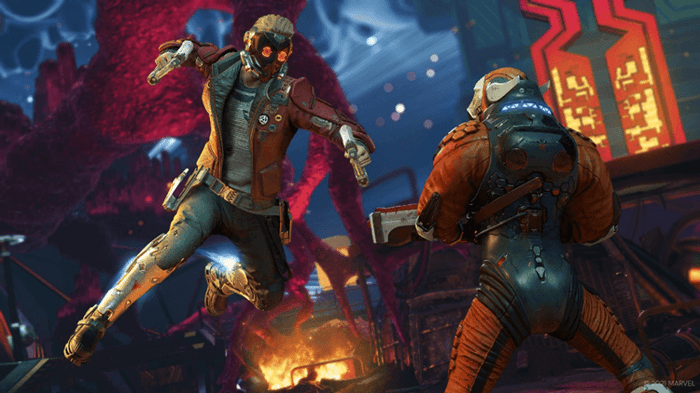
60Hz is great for everyday computing tasks and the standard for gaming. The 120Hz threshold offers extraordinary visual quality that all gamers should experience.
Some displays have a refresh rate higher than 120Hz. On these displays, members will still stream at up to 120fps. But the higher refresh rate helps lower click-to-pixel latency, which refers to the amount of time it takes from a physical action, like pressing a controller button in a soccer game, to when it’s reflected on the screen, like the player attempting a shot.
Lower click-to-pixel latency adds responsiveness to fast-paced games and is especially critical for competitive gamers, where milliseconds can be the fine margin separating victory and defeat.
Members have the option to play at 120fps on a laptop with a 120Hz display, such as MacBook Pros, or connect to a compatible 120Hz+ display, such as NVIDIA G-SYNC monitors.
To change the refresh rate on PC, click the Start button, then Settings > System > Display > Advanced display settings, selecting Refresh rate and the desired Hertz. On Mac, select the Apple menu, access System Preferences, click Displays, navigate the Refresh Rate pop-up menu and choose the requisite Hertz. For further details, visit Windows Central or Apple Support.
To connect to a 120Hz+ display, check the laptop for a compatible video port.
One of the following will work for PC: USB-C (DisplayPort or Thunderbolt), HDMI (1.4 for 1080p, or HDMI 2.0 or later for 1440p) DisplayPort 1.2 and Mini DisplayPort 1.2.

On Mac, look for a USB-C, Thunderbolt (1/2/3), HDMI (1.4 for 1080p, or HDMI 2.0 or later for 1440p), Mini DisplayPort 1.2 or USB 4 port.


Next, look for a compatible port on the monitor. Any of the above will do.
Identifying ports can be tricky, but Digital Trends and Apple have useful articles for PC and Mac, respectively.
To finish, simply acquire the necessary cable and connect devices by plugging them in.
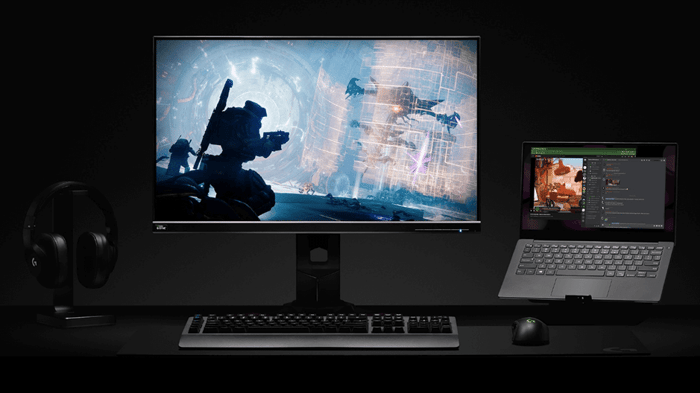

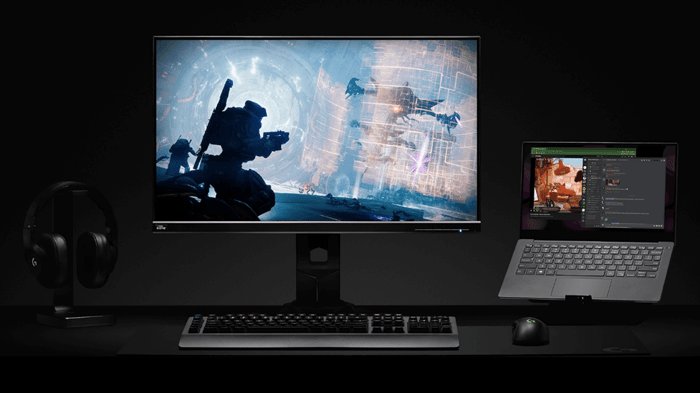
Ready for GeForce RTX 4080 powered Ultimate graphical goodness.
Combinations of cables and connections will work, like HDMI to HDMI or USB-C to DisplayPort. However, performance may vary slightly.
According to testing, the optimal connection to maximize graphics performance on laptops is USB-C to DisplayPort. With Mac, a USB-C (Thunderbolt) adaptor to Thunderbolt to DisplayPort connection works best.
Some laptops can connect with a simple docking station or a hub but double-check as not all can output maximum resolution and fps.
Maximize Streaming Settings on PC and Mac
GeForce NOW Powered by CloudGG has 2 core streaming modes for prioritising visuals or performance.
Balanced
The built-in network test will automatically detect the best streaming resolution, based on your device hardware and network environment. NOTE: 4K, UW QHD, and QHD resolutions streaming at 120fps or any resolution at 240fpsfp requires a wired Ethernet connection to work in balanced mode. If the network test determines that your connection is unable to maintain streaming at your display’s resolution, it may automatically adjust to lower streaming settings.
Competitive
Select this option to turn on Reflex mode and enable game rendering and streaming at up to 240fps for competitive gamers who demand responsive and smooth visuals. For the best experience, pair this mode with:
240Hz or ultra-high refresh rate NVIDIA G-Sync or G-Sync compatible monitor which will vary the rendering and streaming rate to your display. If you are using a GeForce GPU, you should also update your GeForce display drivers to 528.02 (or later) and enable G-Sync from the NVIDIA control panel.
Select a Reflex enabled game by using the Search Filter => “Feature” => “Reflex” when selecting a game to play in the GeForce NOW app.
Custom mode
If you would like to override these automatic settings, or to enable 120fps streaming on a Wi-Fi network, you can do so by adjusting values in custom mode:
- Max bit rate. We recommend Auto, but you can select whatever value your network can support.
- Resolution. This should match the maximum allowed by your monitor or notebook, but make sure it’s set to your desired resolution. Some resolutions will not be visible if your device does not meet the hardware requirements.
- Frame rate. You will need to set this to 120fps if you wish to see the full benefit from your Ultimate membership on 120Hz or faster refresh rate monitors or notebooks. We recommend users with 60Hz monitors set the streaming frame rate to 60fps and Vsync to Adaptive. Setting the streaming frame rate to 120fps can reduce latency, but will result in tearing on screen. If you wish to use the new Reflex mode, set this to 240fps
- VSync. We recommend Adaptive for the best latency and smoothest streaming experience. You can try turning Vsync off to achieve the lowest latency, but you may experience some video tearing during gameplay.
- VRR Display. This setting will enable Cloud G-SYNC technology to minimize stutter and tearing when using a variable refresh rate monitor and supported device. Learn more here.
- Reflex. Select this option to turn on Reflex 240fps streaming mode and enable game rendering and streaming at up to 240fps for competitive gamers who demand responsive and smooth visuals. For the best experience, pair this mode with a compatible monitor and a Reflex supported game.
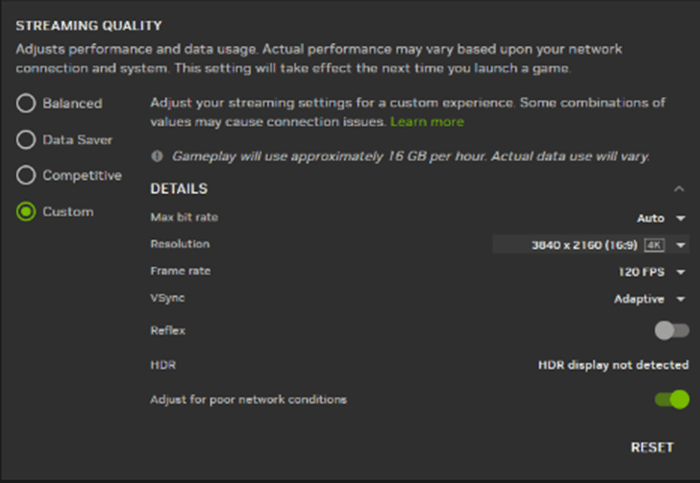

Game settings in GeForce NOW are automatically optimized for 1440p and 120fps in our most popular games. Changes shouldn’t be needed to get the best in-game experience.
Feel free to change settings as needed. To save custom in-game graphics, open Settings and turn on IN-GAME GRAPHICS SETTINGS. Otherwise, graphics will revert back to the recommended settings.
Maximizing display settings will differ depending on the platform.
Streaming on SHIELD TV With 4K HDR
GeForce NOW Powered by CloudGG Ultimate members can play PC games with 4K resolution and HDR at up to 120fps in exceptional 5.1 or 7.1 surround sound on SHIELD TV.
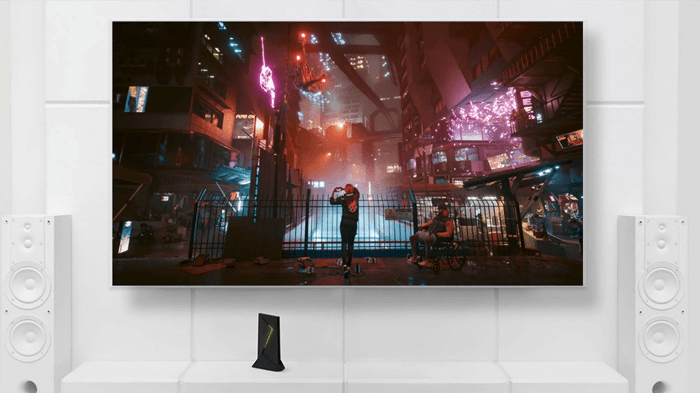

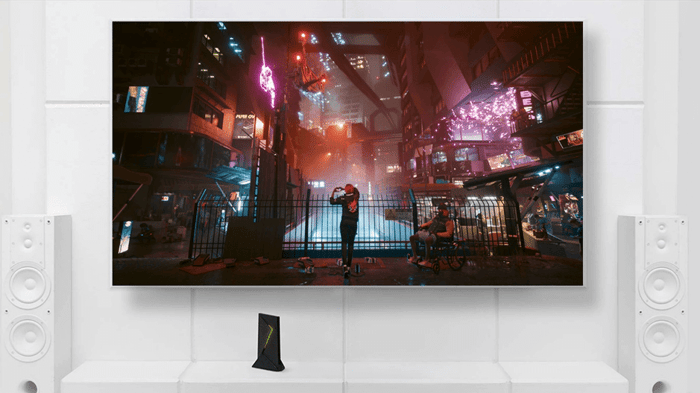
Cyberpunk 2077. Image courtesy of CD PROJEKT RED.
Setup is quick and easy. On a TV that is 4K-HDR-compatible, access the menu, click Settings > Stream Quality and run a network test.
GeForce NOW optimizes graphics settings for the most popular games to stream 4K HDR on SHIELD. No changes to settings are needed. Similar to PC and Mac, settings can be saved with the Save my changes feature.
To play HDR-compatible games, look for the HDR badge. The GeForce NOW team configures HDR games individually and will continue to onboard new titles in the coming months.
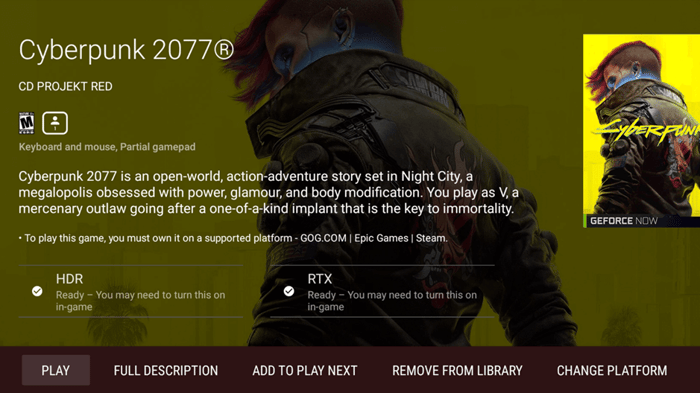

Look for the HDR and RTX badges.
GeForce NOW Powered by CloudGG provides gamers the freedom to save games in the cloud, then pick up and play on the go, retaining a true PC experience.
GeForce NOW Powered by CloudGG at 120fps on Android Mobile Devices
GeForce NOW Powered by CloudGG Ultimate memberships stream at up to 120fps on select Android devices.
Supported phones and tablets include the lists below, with plans to add more over time.
Supported phones:
- Samsung S22/S22+/S22 Ultra
- Samsung S21/S21+/S21 Ultra
- Galaxy Z Fold 3
- Galaxiy Flip 3
- Samsung Note20 Ultra 5G
- Samsung F20 FE EG
- ASUS ROG 5 Series
- Google Pixel 6 Pro
- One Plus 9 Pro
- Xioami Mi 11
- Xiaomi Mi 10 Ultra
Supported tablets:
- Galaxy Tab S8/S8+/S8 Ultra
- Galaxy Tab S7/S7+
- Razer Edge Wi-Fi/Founders Edition/5G
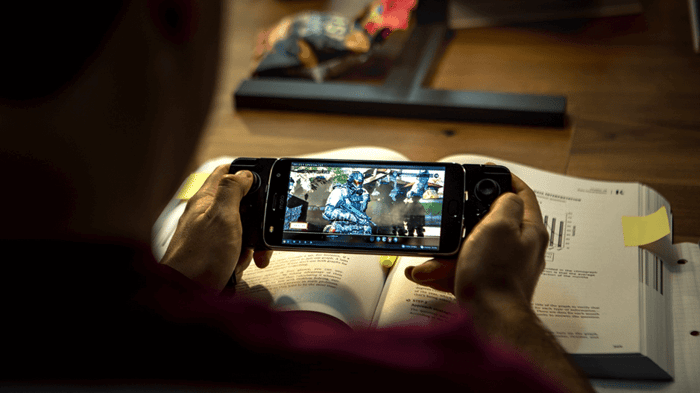

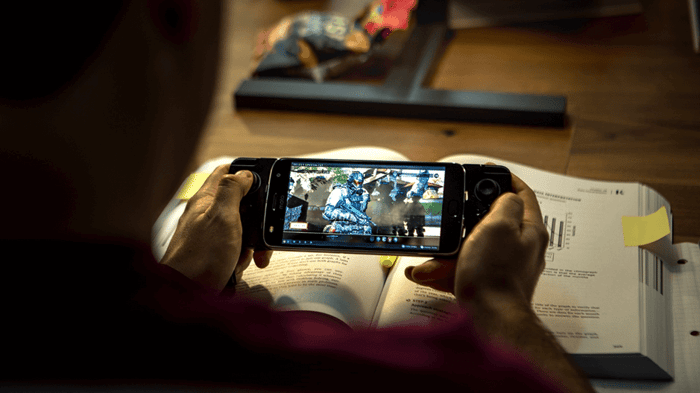
Gaming on the go never looked this good.
Not all phones enable 120Hz by default. It’s the maximum performance, which some users don’t need, and can reduce battery life.
Enable 120Hz for Samsung devices by following these instructions — or check out the phone’s user guide. Then head into the GeForce NOW app and set stream quality to 120ps, then with game settings adjusted, it’s game time!
With Great Internet Comes Great Latency
As a cloud gaming service, GeForce NOW Powered by CloudGG benefits from a strong internet connection.
GeForce NOW requires at least:
- 45 Mbps for 4K resolutions at 120fps (i.e. 3840x2160)
- 35 Mbps for UW QHD & QHD resolutions at 120fps (i.e. 3840x1440 or 2560x1440)
- 35 Mbps for FHD resolutions at 240fps (i.e. 1920x1080)
- 25 Mbps for FHD resolutions at 60fps
- 15 Mbps for HD resolutions at 60ps
We strongly recommend a hardwired Ethernet connection. A 5GHz WiFi connection also provides a great gaming experience.
For specific network and hardware requirements per device type, see below:
Australia, it's time for the Ultimate Upgrade
If you've been holding out on upgrading, here's your cue. A GeForce NOW Powered by CloudGG Ultimate membership lets you experience games like never before. Upgrade today to get started.